

The Campaigns and Line Items screens each offer three views — Table, Board, and Timeline — so you can work with your data in the format that suits you best. Filters work across all three views, and the line items table inside an individual campaign supports all three views too.Documentation Index
Fetch the complete documentation index at: https://platform195.mintlify.app/llms.txt
Use this file to discover all available pages before exploring further.
Choose your view
In the top-right corner of the screen, select one of the three view icons.Table — a sortable, paginated list. Best for scanning large volumes of records or exporting data.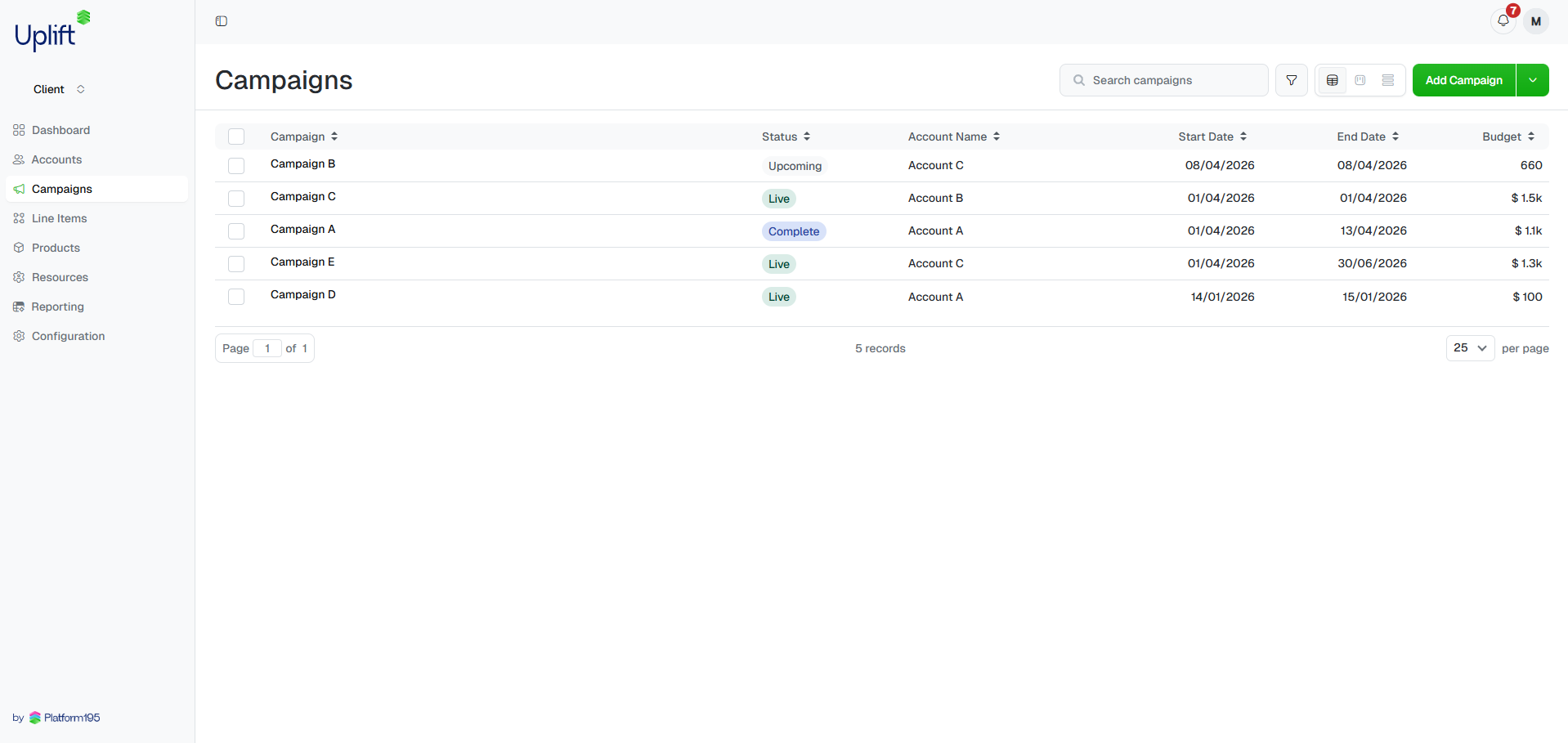 Board — campaigns or line items grouped into columns by status (Upcoming, Briefed, Live, Complete, PCR Ready, Paused). Best for tracking workflow progress at a glance.
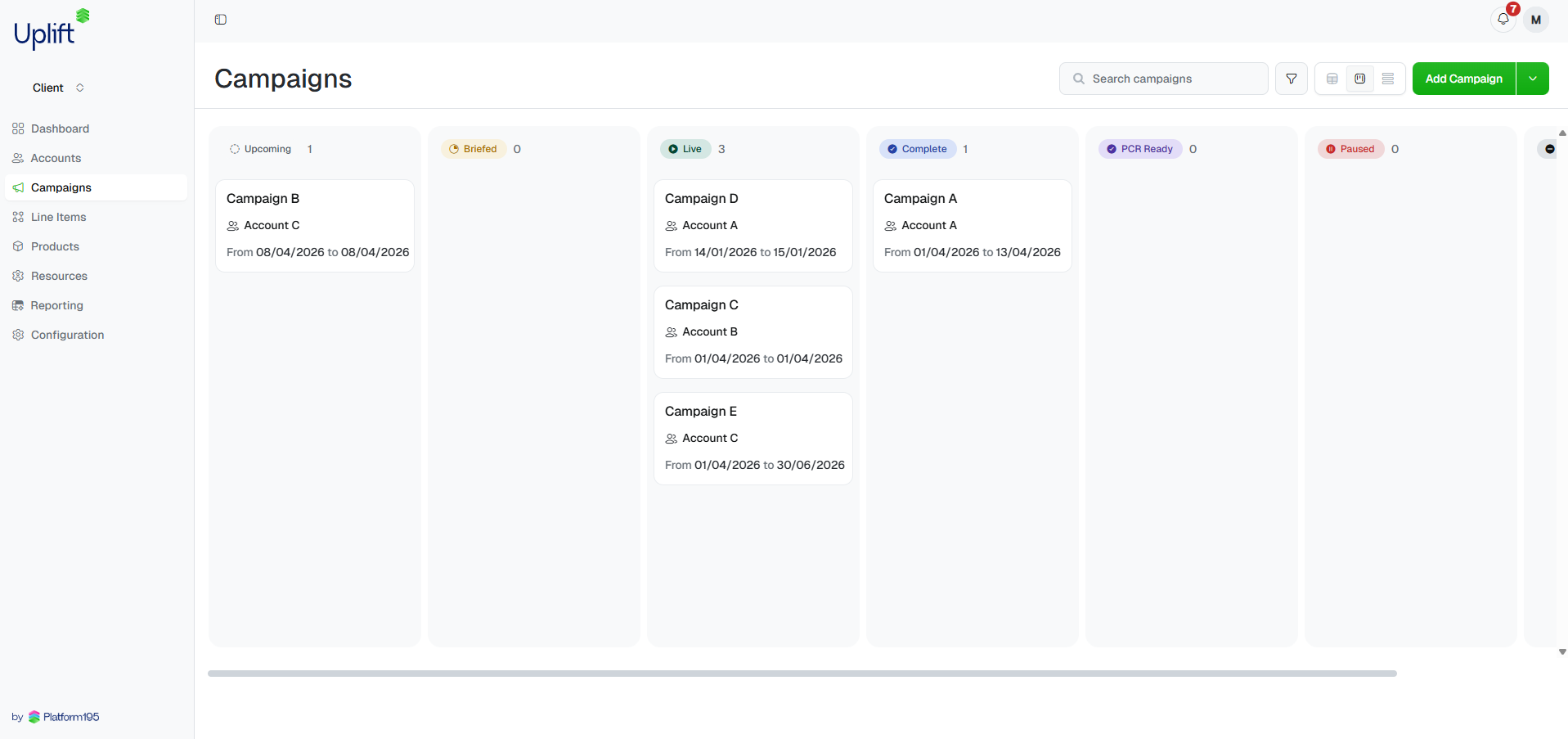 Timeline — a Gantt-style chart showing each record as a bar across a calendar. Best for visualising flight dates and spotting scheduling conflicts.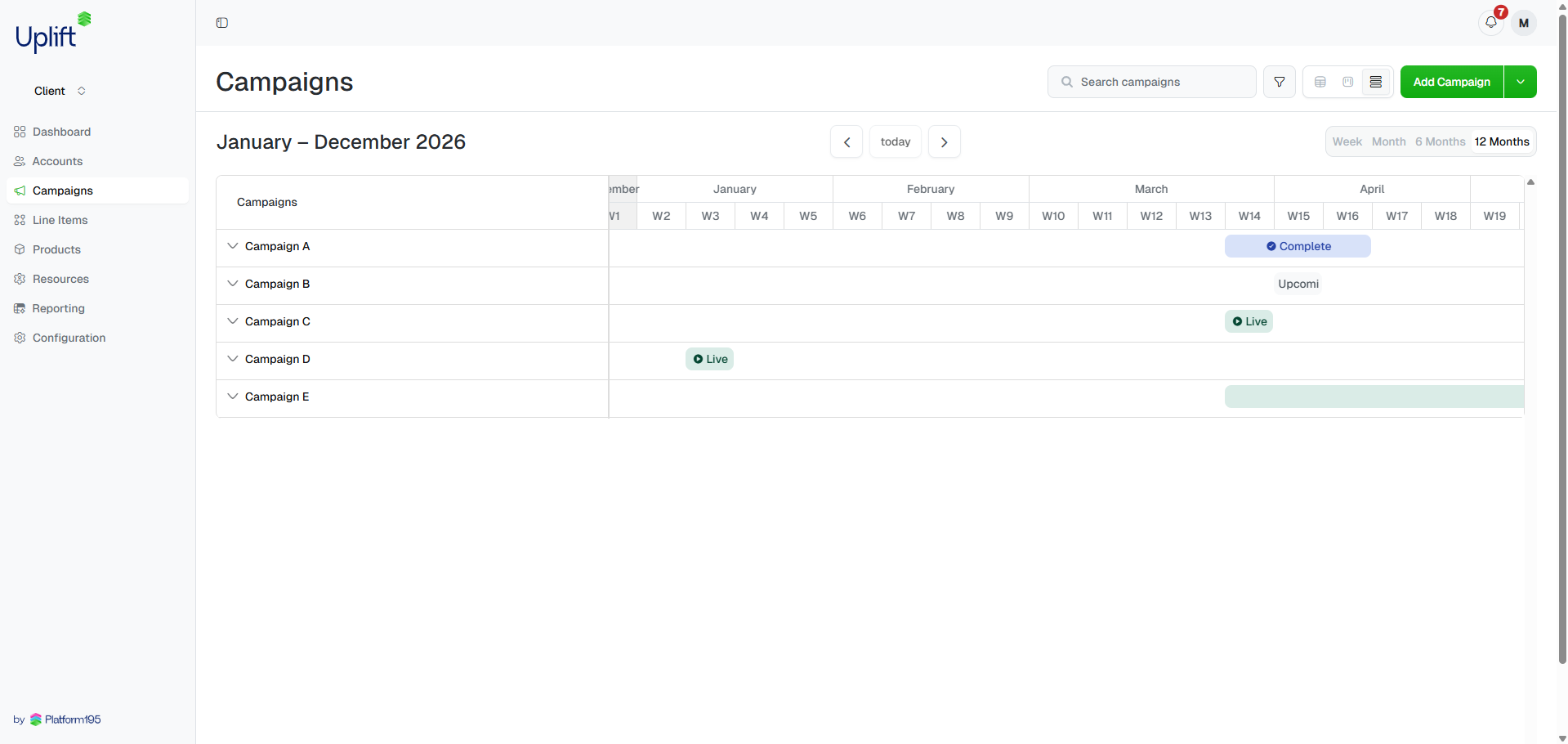
Adjust the Timeline zoom (Timeline view only)
When in Timeline view, use the zoom controls in the top-right to switch between , , , and . Use the arrows to scroll through time, or click to jump back to the current date.
The line items table inside an individual campaign supports all three views too. Open any campaign and use the same view icons above the line items table to switch between Table, Board, and Timeline for that campaign’s line items.