

Once a creative has been created, the creative detail page is where you fill in the ad content and upload assets. The page is split into three panels: Creative Details on the left, a live preview in the centre, and asset uploads on the right. Changes to components and assets reflect in the preview in real time — click to persist them.Documentation Index
Fetch the complete documentation index at: https://platform195.mintlify.app/llms.txt
Use this file to discover all available pages before exploring further.
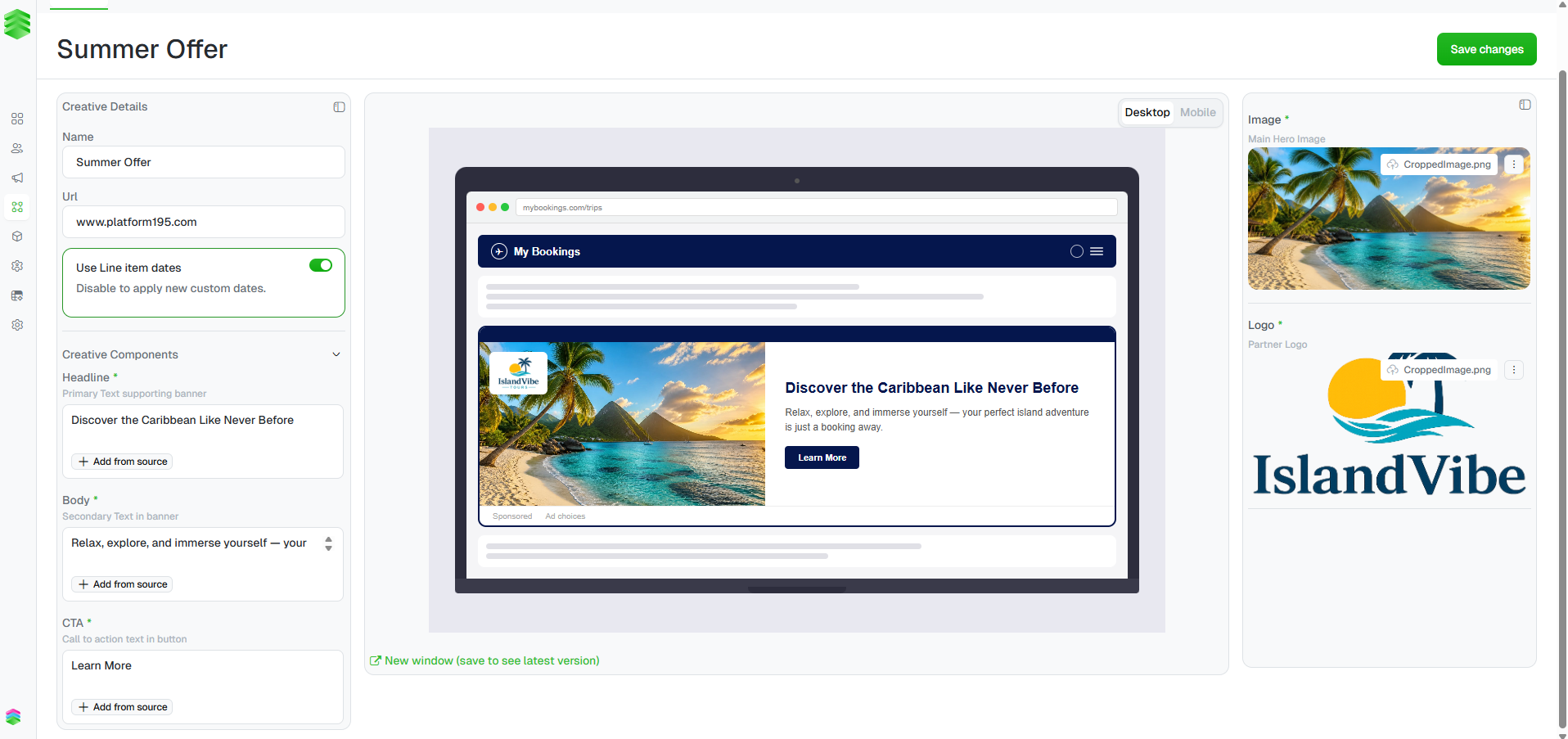
Creative Details
The left panel shows the core details set when the creative was created: Name, URL, and the Use Line Item Dates toggle. These can all be edited here after creation.Creative Components
Below Creative Details, the Creative Components section contains the text fields that populate the ad — typically Headline, Body, and CTA. The exact fields depend on the template selected when the creative was created. Type directly into each field. The preview updates as you type. Each field also has an option — this lets you pull content from a connected asset feed if your workspace has one configured.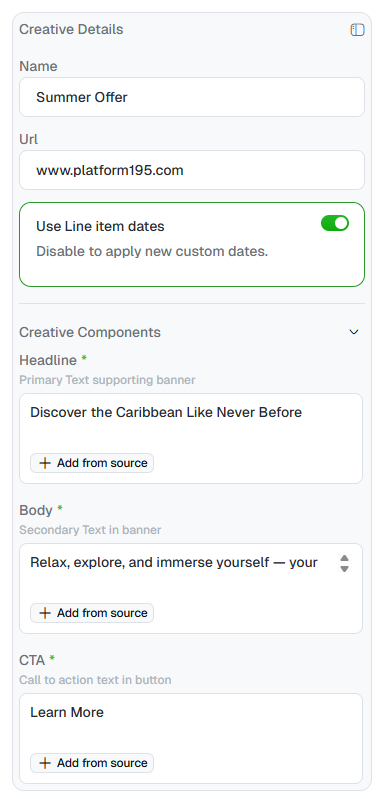
Uploading assets
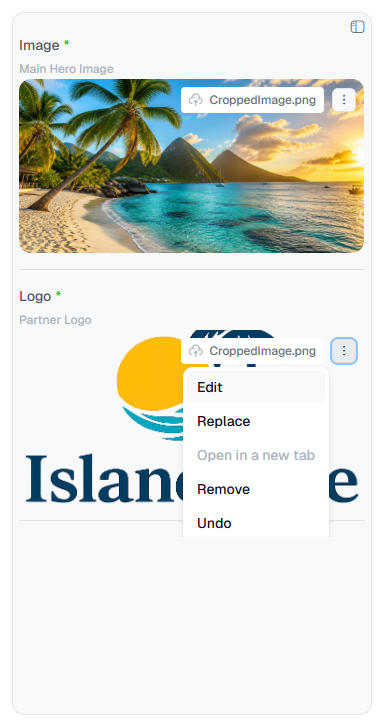
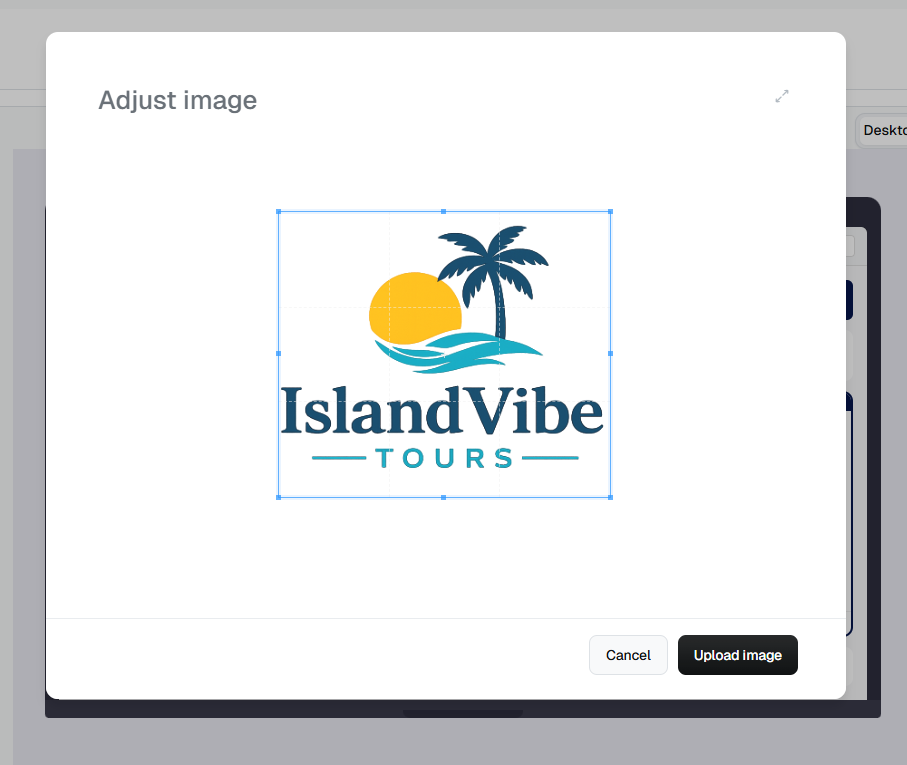
The right panel handles image assets — typically a Main Hero Image and a Partner Logo. For each asset you can:- Drag and drop a file directly onto the upload area
- Click to browse your files
- Paste an image URL directly into the URL field
Previewing the creative
The centre panel shows a live preview of the ad as it will appear in situ. Toggle between and to check both breakpoints.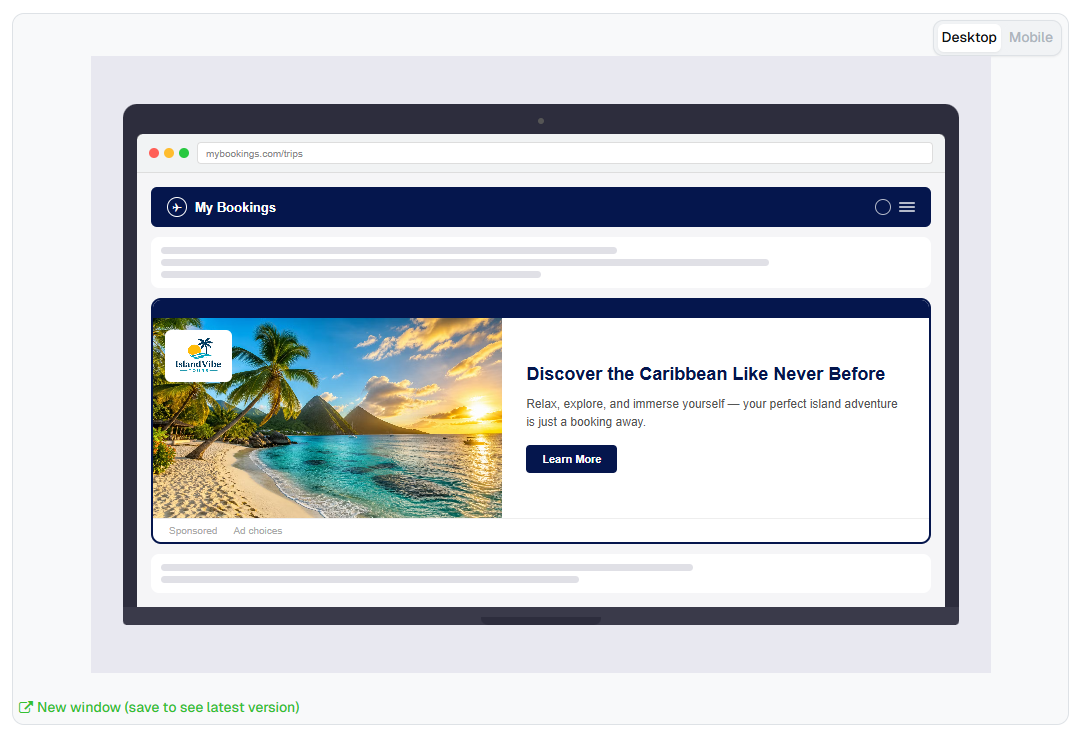
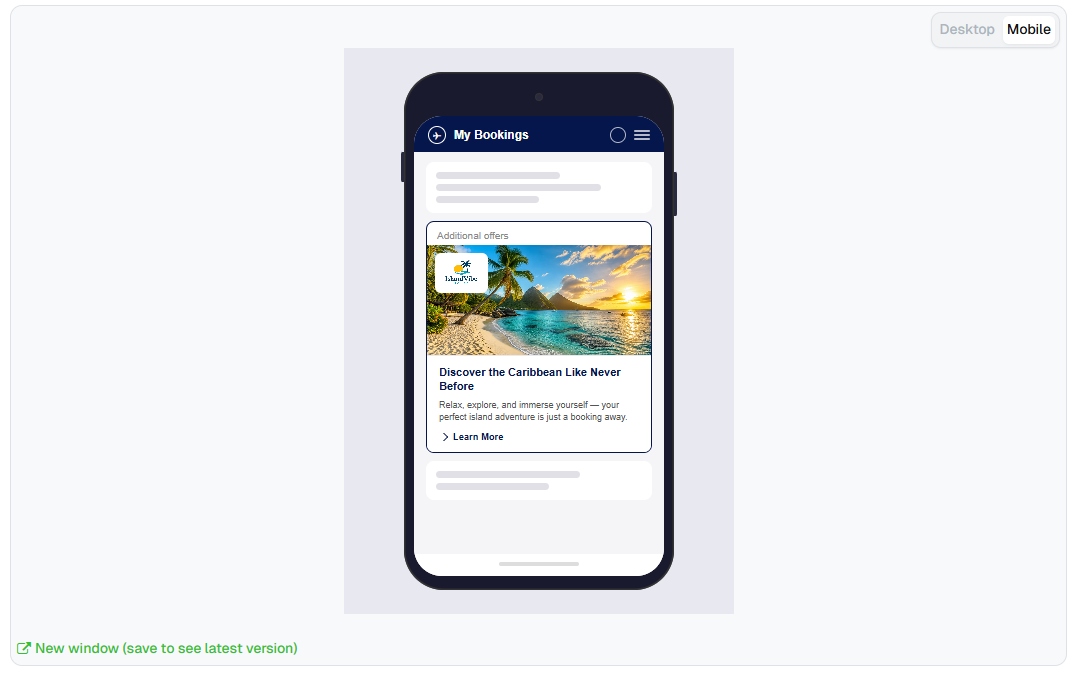
The preview reflects the last saved version. Click
before opening the preview in a new window to see your latest edits.