

A tour of the app shell — the four-level hierarchy, the sidebar, the breadcrumb trail, and the tabs you’ll see on every screen. Read this once and you’ll know where everything lives. Uplift Hub is organised around a single idea: everything you do happens inside an Account. Accounts hold campaigns, campaigns hold line items, line items hold creatives. Once that hierarchy clicks, the rest of the app falls into place.Documentation Index
Fetch the complete documentation index at: https://platform195.mintlify.app/llms.txt
Use this file to discover all available pages before exploring further.
The hierarchy
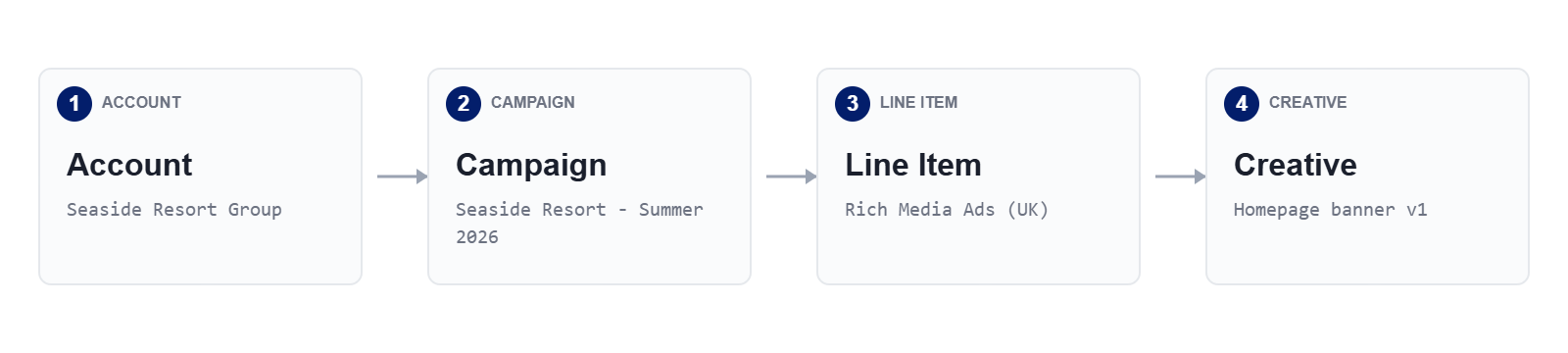
1 · Account
The buying company — usually the advertiser. Sits at the top of the
hierarchy. Holds invoicing details, contacts and any internal Product
IDs. Every campaign belongs to exactly one account.
Where to find it — Sidebar → Accounts.
Where to find it — Sidebar → Accounts.
2 · Campaign
A sold order — usually mirroring a contract or insertion order. Holds
dates, budget, currency and sales probability. Choose Package or Custom
at creation; this is the only field you can’t change later.
Where to find it — Sidebar → Campaigns, or from an account’s row.
Where to find it — Sidebar → Campaigns, or from an account’s row.
3 · Line Item
One row of the media plan — a product against a market for a date range.
Holds product, market, units, rate and pricing model. Uplift Ads or
Uplift Ads+ delivery is configured here, and this is the level at which
line items go Ready → Live.
Where to find it — Sidebar → Line Items, or the Line Items table on a campaign.
Where to find it — Sidebar → Line Items, or the Line Items table on a campaign.
4 · Creative
The ad asset itself — image, video, URL or HTML. Lives under a line item
on its Creatives tab. Carries its own status (e.g. Not Active, Approved)
and inherits dates from its parent line item by default.
Where to find it — Creatives tab on any line item.
Where to find it — Creatives tab on any line item.
The app shell
Every screen in Uplift Hub uses the same layout: a left sidebar for primary navigation, a top bar for breadcrumbs and account-level actions, and the main canvas in the middle. The shell never changes — only the canvas does..png)
Primary navigation
Dashboard, Accounts, Campaigns, Line Items, Products, Resources,
Reporting, Configuration.
Tabs
Sub-views of the current record — Overview, Brief, Creatives, Reporting,
Comments, Documents, History, Settings.
Primary navigation
The sidebar lists the seven primary screens. They’re always one click away — pick the level you want to work at, and the canvas lists every record at that level across the whole workspace.| Item | What it does |
|---|---|
| Dashboard | Workspace summary — counts of upcoming, live, completed and paused campaigns plus your notifications. |
| Accounts | Every advertiser in the workspace. Top of the hierarchy. |
| Campaigns | Every sold order across every account. Filter by status, market or date. |
| Line Items | Every line item across every campaign — the granular delivery view. |
| Products | The catalogue of products you can sell. Read-mostly; managed by your admin. |
| Resources | Workspace-specific links and guides — support forms, internal docs, getting-started material. |
| Reporting | Cross-workspace performance — Campaign Performance, Line Item Performance, Insights, and any custom dashboards. |
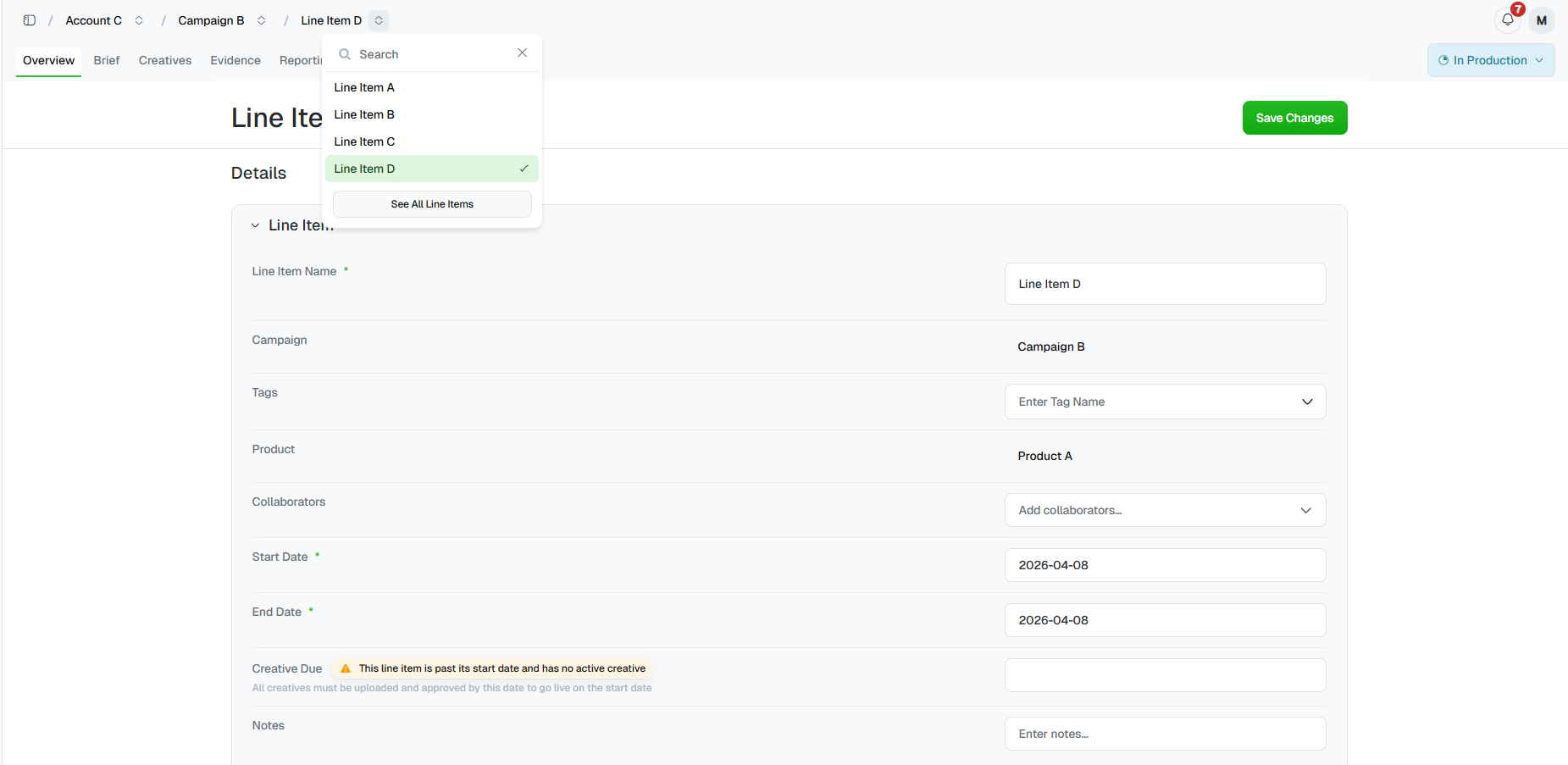
Breadcrumbs
Breadcrumbs run along the top of every detail page and do two jobs at once: they tell you where you are in the hierarchy, and they let you jump sideways to a sibling record without going back to a list. A trail looks like this:🏠 / Seaside Resort Group ⌄ / Seaside Resort - Summer 2026 ⌄ / Rich Media Ads (UK) ⌄ / Homepage banner v1
- Account — the advertiser. Coloured to flag the workspace root.
- Campaign — the sold order this record belongs to.
- Line Item — the media-plan row. Truncated when long.
- Creative — the current page. Bold means “you are here”.
Tabs at each level
Open any record — an account, a campaign, a line item, a creative — and the canvas splits into tabs. The tab set is consistent within a level but shrinks as you go deeper.| Tab | Account | Campaign | Line Item | Creative |
|---|---|---|---|---|
| Overview | ✓ | ✓ | ✓ | ✓ |
| Brief | — | ✓ | ✓ | — |
| Creatives | — | ✓ | ✓ | — |
| Evidence | — | ✓ | ✓ | — |
| Reporting | — | ✓ | ✓ | — |
| Comments | — | ✓ | ✓ | ✓ |
| Documents | — | ✓ | — | — |
| History | — | ✓ | ✓ | ✓ |
| Settings | ✓ | ✓ | — | — |
Three ways to find what you want
Top-down — drill from a list
Start at Accounts, click in, drill to a campaign, drill to a line
item. Use this when you know the advertiser but not the line item.
Flat — open the global list
Pick Campaigns or Line Items from the sidebar to see every
record across the workspace. Use the search bar and column filters to
narrow down — handy when you don’t remember which account a line item
lives under.
What happens next — once you’re comfortable moving around, head to
Adding a new account to set up your first
advertiser, or Creating a campaign if the
account already exists.